
Single-Cell Spatial Transcriptomics: Basic Data Analysis (Single-Sample Pipeline based on Scanpy)
1. Module Introduction
SeekSpace technology is a high-resolution spatial transcriptomics technology that can not only detect gene expression data at single-cell resolution but also accurately locate the true spatial coordinates of each cell in the tissue. To facilitate a quick start for customers, the data generated by SeekSpace seamlessly integrates with mainstream single-cell and spatial transcriptomics analysis ecosystems, such as Python's scanpy library and R's Seurat library.
This tutorial is specifically written for customers using the Python analysis environment. Here, we will demonstrate how to generate and read .h5ad files generated by seekspacetools, and perform intuitive visual analysis.
2. Input File Preparation
Raw Input Data Description: seekspacetools also generates a matrix result file directory, mainly containing:
- Expression Matrix Directory (e.g.,
*_filtered_feature_bc_matrix): Containsbarcodes.tsv.gz,features.tsv.gz,matrix.mtx.gz, which record the expression level of genes in each cell; andcell_locations.tsv.gz, which records the physical spatial coordinates of the cells. - Tissue Section Images (e.g.,
*aligned_DAPI.pngand*aligned_HE.png): DAPI is the cell nucleus fluorescence staining image, and HE is the hematoxylin-eosin staining image, used to display tissue morphological structure.
About the .h5ad File: This is an industry-standard storage format for single-cell/spatial transcriptomics data. The official preprocessing pipeline has already completed the following tedious early work for you:
- Data quality control (QC) and cell/gene filtering
- Expression normalization and highly variable gene (HVG) extraction
- Dimensionality reduction and clustering (PCA / UMAP / tSNE / Leiden unsupervised clustering)
- Extraction and integration of spatial coordinates (X, Y) and tissue staining images (DAPI / HE)
This means you only need to simply load this file to directly enter the advanced downstream analysis and visual presentation stage!
💡 Tip: In the SeekSpace chip, the size of a single pixel is approximately 0.2653 micrometers. If you need to calculate the physical distance between cells in the actual tissue space, simply multiply the pixel coordinates by 0.2653 to get the actual distance in micrometers.
import scanpy as sc
import pandas as pd
import matplotlib.pyplot as plt
import numpy as np
import warnings
warnings.filterwarnings("ignore")

# Set scanpy's log display level and global plotting parameters
sc.settings.verbosity = 3
sc.settings.set_figure_params(dpi=100, facecolor="white")
3. Preprocessing Pipeline: From Raw Matrix to h5ad
To help you fully master the data processing details, this section demonstrates the core code logic of seekspacetools in generating the .h5ad file. It shows how to step-by-step construct a complete .h5ad object containing dimensionality reduction and clustering information from the expression matrix, spatial coordinate files, and tissue images generated by seekspacetools.
Note: This section is primarily for teaching demonstration to help you understand the underlying logic. If you just want to quickly perform visual exploration, you can skip the code in this section and run directly from Section 4.
3.1 Read Expression Matrix and Spatial Coordinates
# 1. Read the expression matrix in CellRanger format
adata_raw = sc.read_10x_mtx('./WTH1092_filtered_feature_bc_matrix/', var_names='gene_symbols', cache=False)
adata_raw.obs_names_make_unique()
adata_raw.var_names_make_unique()
#
# 2. Read the cell spatial coordinate file (cell_locations.tsv.gz)
df_center = pd.read_csv('./WTH1092_filtered_feature_bc_matrix/cell_locations.tsv.gz', sep='\t')
#
# 3. Align spatial coordinates with the cells in the expression matrix
df_center_aligned = df_center.set_index('Cell_Barcode').reindex(adata_raw.obs_names)
#
# 4. Flip the Y-axis coordinates (flip according to the true physical size size_y of the image to adapt to the Scanpy spatial plotting system)
size_y = 19906 # Example true size of the image Y-axis
df_center_aligned["Y"] = size_y - df_center_aligned["Y"]
#
# 5. Integrate coordinates into adata, and save as Spatial1/Spatial2 columns compatible with Seurat habits
adata_raw.obsm['spatial'] = df_center_aligned[['X', 'Y']].to_numpy()
adata_raw.obs['Spatial1'] = df_center_aligned['X']
adata_raw.obs['Spatial2'] = df_center_aligned['Y']3.2 Quality Control (QC) and Filtering
# 1. Filter cells with extremely low expression (Optional)
sc.pp.filter_genes(adata_raw, min_cells=0)
#
# 2. Mark mitochondrial genes
adata_raw.var['mt'] = adata_raw.var_names.str.startswith(('MT-', 'mt-', 'Mt-'))
#
# 3. Calculate quality control metrics
sc.pp.calculate_qc_metrics(adata_raw, qc_vars=['mt'], percent_top=None, log1p=False, inplace=True)
#
# 4. Rename QC column names to be compatible with downstream pipelines and Seurat habits
adata_raw.obs.rename(columns={
    'n_genes_by_counts': 'nFeature_RNA',
    'total_counts': 'nCount_RNA',
    'pct_counts_mt': 'percent.mito'
}, inplace=True)
#
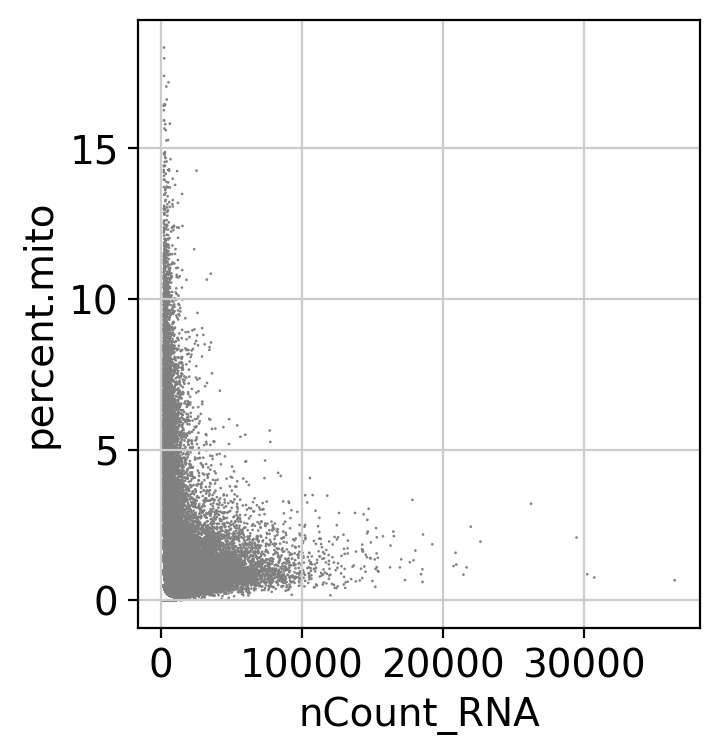
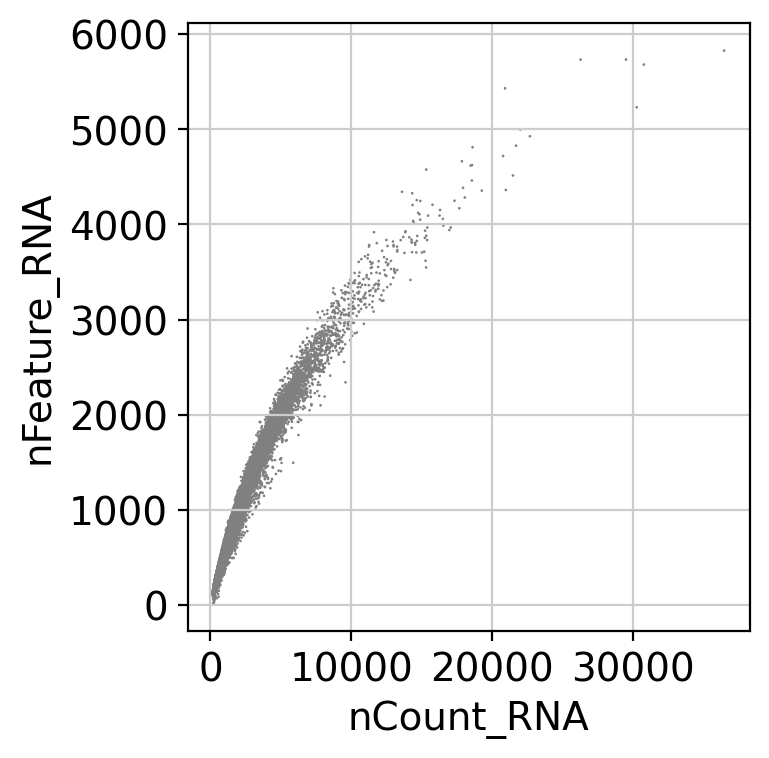
# 5. Plot QC violin plots and scatter plots
sc.pl.violin(adata_raw, ['nFeature_RNA', 'nCount_RNA', 'percent.mito'], jitter=0.4, multi_panel=True, show=False)
sc.pl.scatter(adata_raw, x='nCount_RNA', y='percent.mito', show=False)
sc.pl.scatter(adata_raw, x='nCount_RNA', y='nFeature_RNA', show=False)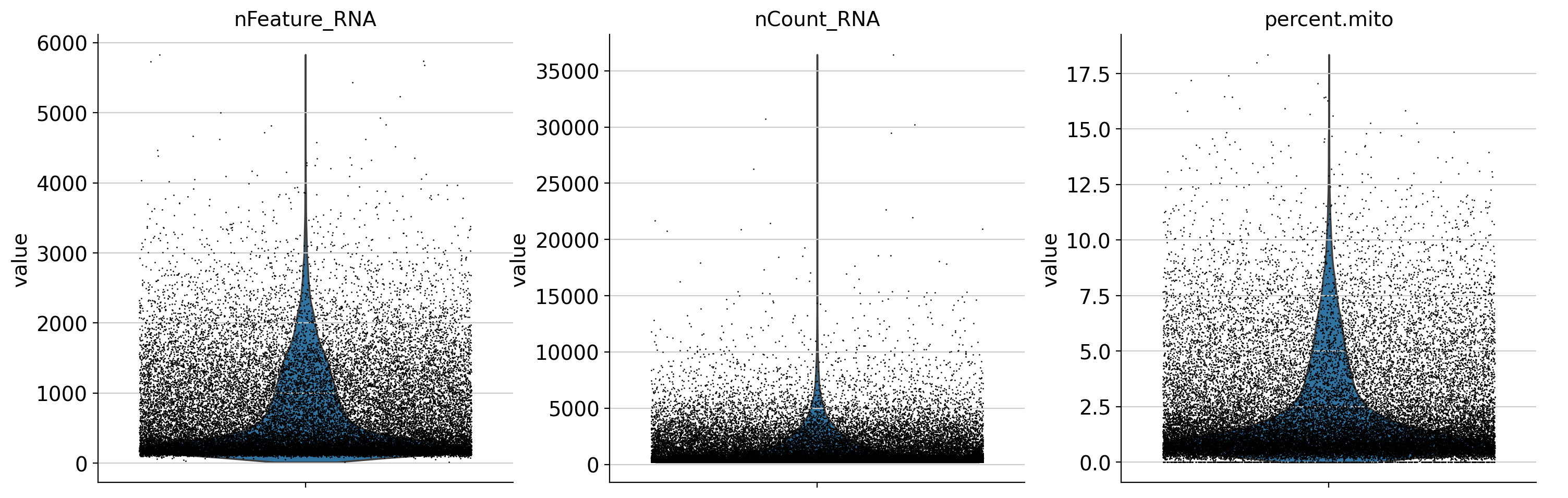
3.3 Normalization, Finding Highly Variable Genes (HVG) and Data Scaling
# 1. Expression normalization (Normalize)
sc.pp.normalize_total(adata_raw, target_sum=1e4)
#
# 2. Log-transform
sc.pp.log1p(adata_raw)
#
# 3. Find the top 2000 highly variable genes (using Seurat algorithm)
sc.pp.highly_variable_genes(adata_raw, n_top_genes=2000, flavor='seurat')
#
# 4. Freeze raw expression levels for subsequent differential analysis
adata_raw.raw = adata_raw
#
# 5. Extract a subset of highly variable genes, regress out the influence of mitochondrial proportion, and scale
adata_hvg = adata_raw[:, adata_raw.var.highly_variable].copy()
sc.pp.regress_out(adata_hvg, ['percent.mito'])
sc.pp.scale(adata_hvg, max_value=10)finished (0:00:00)
extracting highly variable genes
finished (0:00:00)
--> added
'highly_variable', boolean vector (adata.var)
'means', float vector (adata.var)
'dispersions', float vector (adata.var)
'dispersions_norm', float vector (adata.var)
regressing out ['percent.mito']
sparse input is densified and may lead to high memory use
finished (0:01:18)
3.4 Dimensionality Reduction, Unsupervised Clustering and Differentially Expressed Gene Analysis
# 1. Principal Component Analysis (PCA)
sc.tl.pca(adata_hvg, svd_solver='arpack')
adata_raw.obsm['X_pca'] = adata_hvg.obsm['X_pca']
#
# 2. Construct neighborhood graph
sc.pp.neighbors(adata_raw, n_neighbors=10, n_pcs=15)
#
# 3. Iterate through multiple resolutions for Leiden clustering (0.2 ~ 1.7)
import numpy as np
for res in np.arange(0.2, 1.7, 0.3):
    sc.tl.leiden(adata_raw, resolution=res, key_added=f'res_{res:.1f}')
#
# 4. Set default clustering result (resolution=0.8)
sc.tl.leiden(adata_raw, resolution=0.8, key_added='leiden')
#
# 5. Non-linear dimensionality reduction (UMAP and tSNE)
sc.tl.umap(adata_raw)
sc.tl.tsne(adata_raw, n_pcs=15)
#
# 6. Find differentially expressed genes (Marker genes)
sc.tl.rank_genes_groups(adata_raw, 'leiden', method='wilcoxon', key_added='rank_genes_groups')with n_comps=50
finished (0:00:12)
computing neighbors
using 'X_pca' with n_pcs = 15
finished: added to \`.uns['neighbors']\`
\`.obsp['distances']\`, distances for each pair of neighbors
\`.obsp['connectivities']\`, weighted adjacency matrix (0:00:04)
running Leiden clustering
finished: found 12 clusters and added
'res_0.2', the cluster labels (adata.obs, categorical) (0:00:20)
running Leiden clustering
finished: found 14 clusters and added
'res_0.5', the cluster labels (adata.obs, categorical) (0:00:18)
running Leiden clustering
finished: found 18 clusters and added
'res_0.8', the cluster labels (adata.obs, categorical) (0:00:24)
running Leiden clustering
finished: found 23 clusters and added
'res_1.1', the cluster labels (adata.obs, categorical) (0:00:19)
running Leiden clustering
finished: found 27 clusters and added
'res_1.4', the cluster labels (adata.obs, categorical) (0:00:27)
running Leiden clustering
finished: found 18 clusters and added
'leiden', the cluster labels (adata.obs, categorical) (0:00:24)
computing UMAP
finished: added
'X_umap', UMAP coordinates (adata.obsm)
'umap', UMAP parameters (adata.uns) (0:00:19)
computing tSNE
using 'X_pca' with n_pcs = 15
using sklearn.manifold.TSNE
finished: added
'X_tsne', tSNE coordinates (adata.obsm)
'tsne', tSNE parameters (adata.uns) (0:02:28)
ranking genes
finished: added to \`.uns['rank_genes_groups']\`
'names', sorted np.recarray to be indexed by group ids
'scores', sorted np.recarray to be indexed by group ids
'logfoldchanges', sorted np.recarray to be indexed by group ids
'pvals', sorted np.recarray to be indexed by group ids
'pvals_adj', sorted np.recarray to be indexed by group ids (0:01:38)
3.5 Integrate Tissue Section Images and Save h5ad
import os
from PIL import Image
#
# 1. Read tissue section images (DAPI and HE) and calculate the true scalefactor based on the image pixel width
img_dapi_path = "WTH1092_aligned_DAPI.png"
img_he_path = "WTH1092_aligned_HE.png"

# size_x and size_y are stored in adata.uns['spatial'][sample_name] of the h5ad file.
## If your software version is v1.0.2, size_x and size_y are as follows:
size_x = 55050
size_y = 19906
## If your software version is v1.0.3, size_x and size_y are as follows:
# size_x = 56500
# size_y = 20434


tissue_DAPI_scalef = 1.0
tissue_HE_scalef = 1.0
#
img_dapi = Image.open(img_dapi_path).convert("RGB")
img_dapi_width, _ = img_dapi.size
tissue_DAPI_scalef = img_dapi_width / size_x
#
if os.path.exists(img_he_path):
    img_he = Image.open(img_he_path).convert("RGB")
    img_he_width, _ = img_he.size
    tissue_HE_scalef = img_he_width / size_x
else:
    tissue_HE_scalef = tissue_DAPI_scalef
#
# 2. Store the image matrix and spatial metadata into adata.uns['spatial']
library_id = "WTH1092"
adata_raw.uns['spatial'] = {
    library_id: {
        "images": {"DAPI": np.array(img_dapi)},
        "scalefactors": {
            "tissue_DAPI_scalef": tissue_DAPI_scalef,
            "tissue_HE_scalef": tissue_HE_scalef,
            "spot_diameter_fullres": 100.0
        },
        "size_x": size_x,
        "size_y": size_y
    }
}
if os.path.exists(img_he_path):
    adata_raw.uns['spatial'][library_id]['images']['HE'] = np.array(img_he)
#
# 3. Save the processed complete data object as a compressed h5ad file for direct loading in downstream analysis!
adata_raw.write_h5ad("WTH1092.h5ad", compression="gzip")
4. Read h5ad Comprehensive Data Object (Quick Start)
Please replace 'B21_36M.h5ad' in the code below with your actual generated .h5ad sample file path. After reading, you will get an AnnData object (usually named adata), which is the core data structure running through the entire Python spatial transcriptomics analysis.
# Read the preprocessed comprehensive data file
# Please modify 'B21_36M.h5ad' here according to your actual file name
adata = sc.read_h5ad('WTH1092.h5ad')

# View the overview information of the adata object
# You can see the number of cells (n_obs), number of genes (n_vars), and the stored dimensionality reduction and spatial information in the output
adataobs: 'Spatial1', 'Spatial2', 'nFeature_RNA', 'nCount_RNA', 'total_counts_mt', 'percent.mito', 'res_0.2', 'res_0.5', 'res_0.8', 'res_1.1', 'res_1.4', 'leiden'
var: 'gene_ids', 'feature_types', 'n_cells', 'mt', 'n_cells_by_counts', 'mean_counts', 'pct_dropout_by_counts', 'total_counts', 'highly_variable', 'means', 'dispersions', 'dispersions_norm'
uns: 'hvg', 'leiden', 'log1p', 'neighbors', 'rank_genes_groups', 'res_0.2', 'res_0.5', 'res_0.8', 'res_1.1', 'res_1.4', 'spatial', 'tsne', 'umap'
obsm: 'X_pca', 'X_tsne', 'X_umap', 'spatial'
obsp: 'connectivities', 'distances'
5. UMAP Dimensionality Reduction and Cell Clustering Display
In transcriptomics analysis, we usually reduce high-dimensional gene expression data to a two-dimensional plane (such as UMAP or tSNE) for display. On the dimensionality reduction plot, the closer the cells are, the more similar their overall gene expression patterns are.
The official preprocessing script has already used unsupervised clustering algorithms (Leiden) to divide the cells into different subpopulations (Clusters) and stored the results in adata.obs['leiden'].
# Set plot size
sc.settings.set_figure_params(figsize=(7, 7))

# Color the UMAP plot according to the Leiden clustering results
sc.pl.umap(adata, color=['leiden'])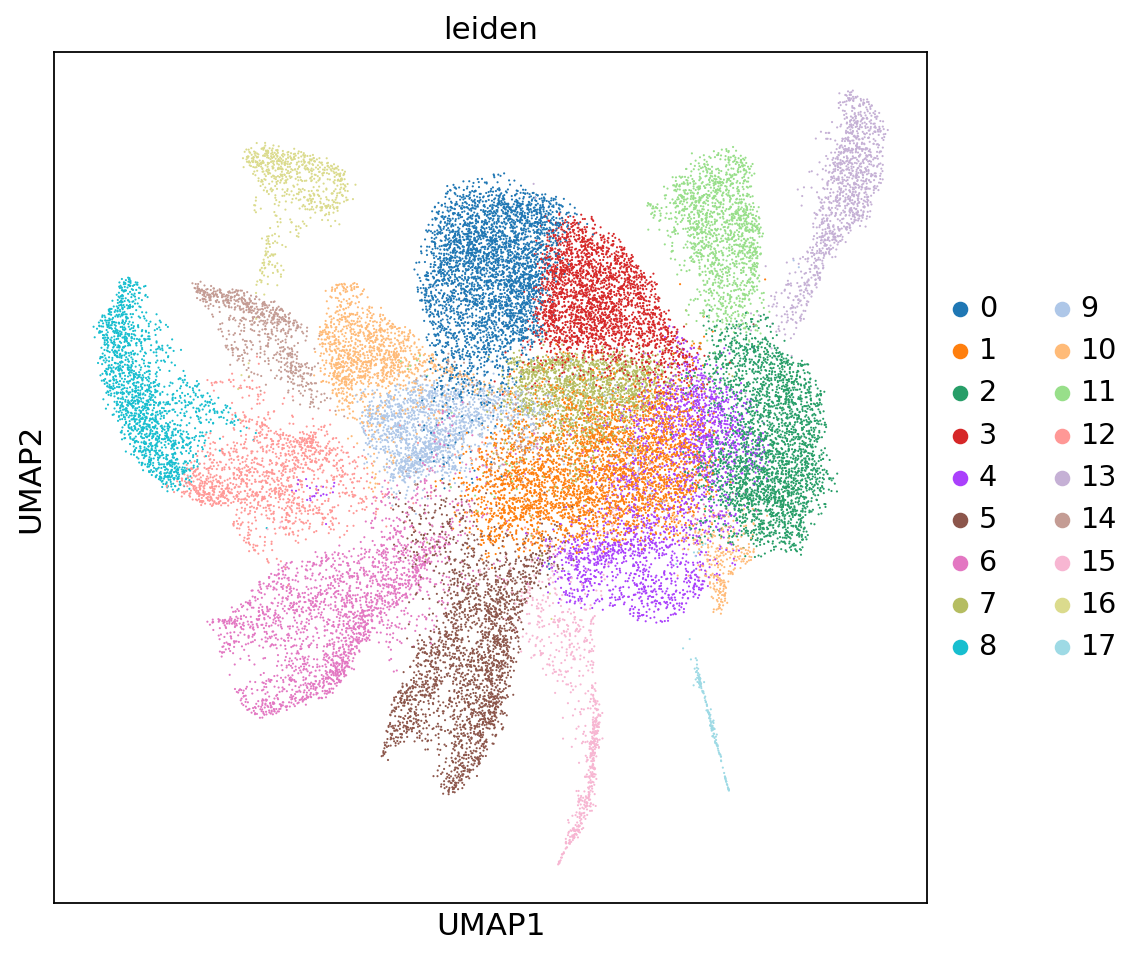
In addition to displaying cell populations, you can also view the expression abundance distribution of specific Marker genes of interest across various cell populations:
# Using the 'Cst3' gene as an example here, you can replace it with the key gene name of your research
gene_of_interest = 'Cst3'
if gene_of_interest in adata.var_names:
    sc.pl.umap(adata, color=[gene_of_interest], use_raw=False, cmap='Reds')
else:
    print(f"Gene {gene_of_interest} not found in the data")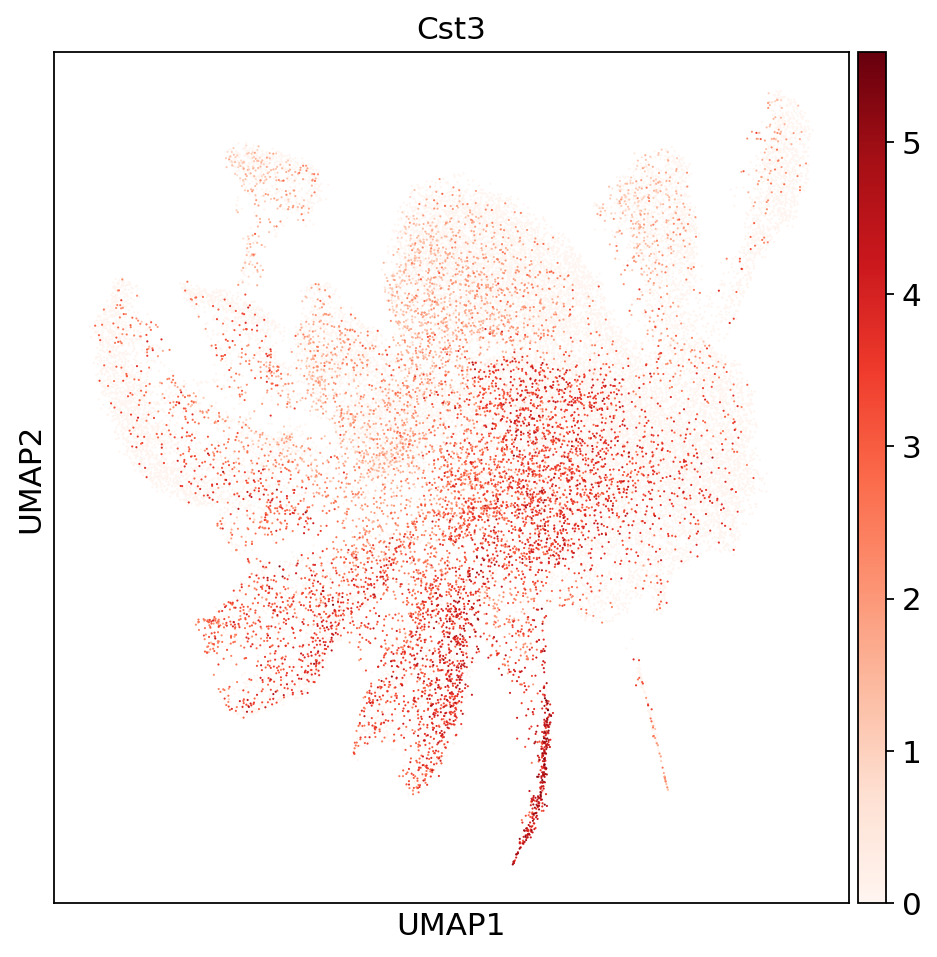
6. In Situ Spatial Distribution Display
The core technological advantage of SeekSpace lies in retaining the true physical positions of cells on tissue sections!
The spatial coordinate information of the cells has been safely stored in adata.obsm['spatial']. We can directly display the distribution of cells in the chip space through scanpy's embedding visualization function and use different colors to mark the cell populations they belong to.
sc.settings.set_figure_params(figsize=(12, 5))

# Plot in situ spatial scatter plot, mapping color to the cell cluster
sc.pl.embedding(adata, "spatial", color=["leiden"])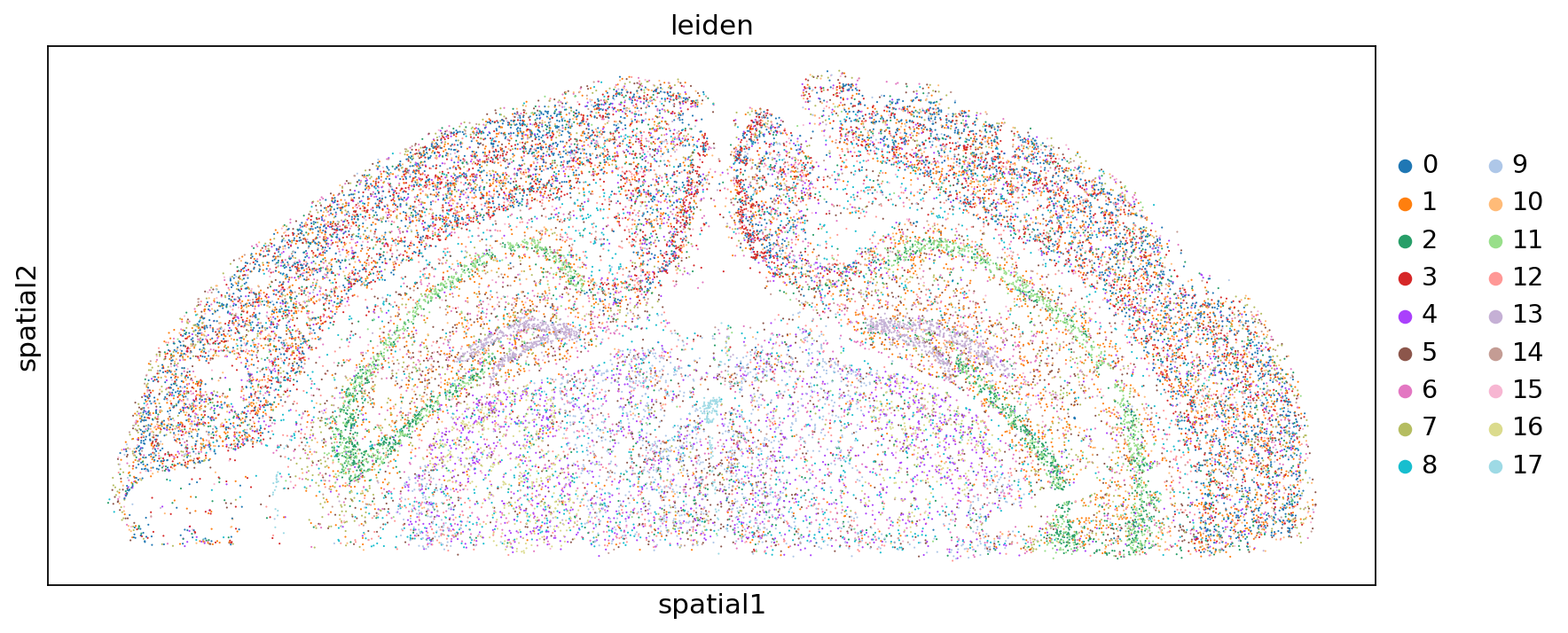
7. Overlay Tissue Section Image Display
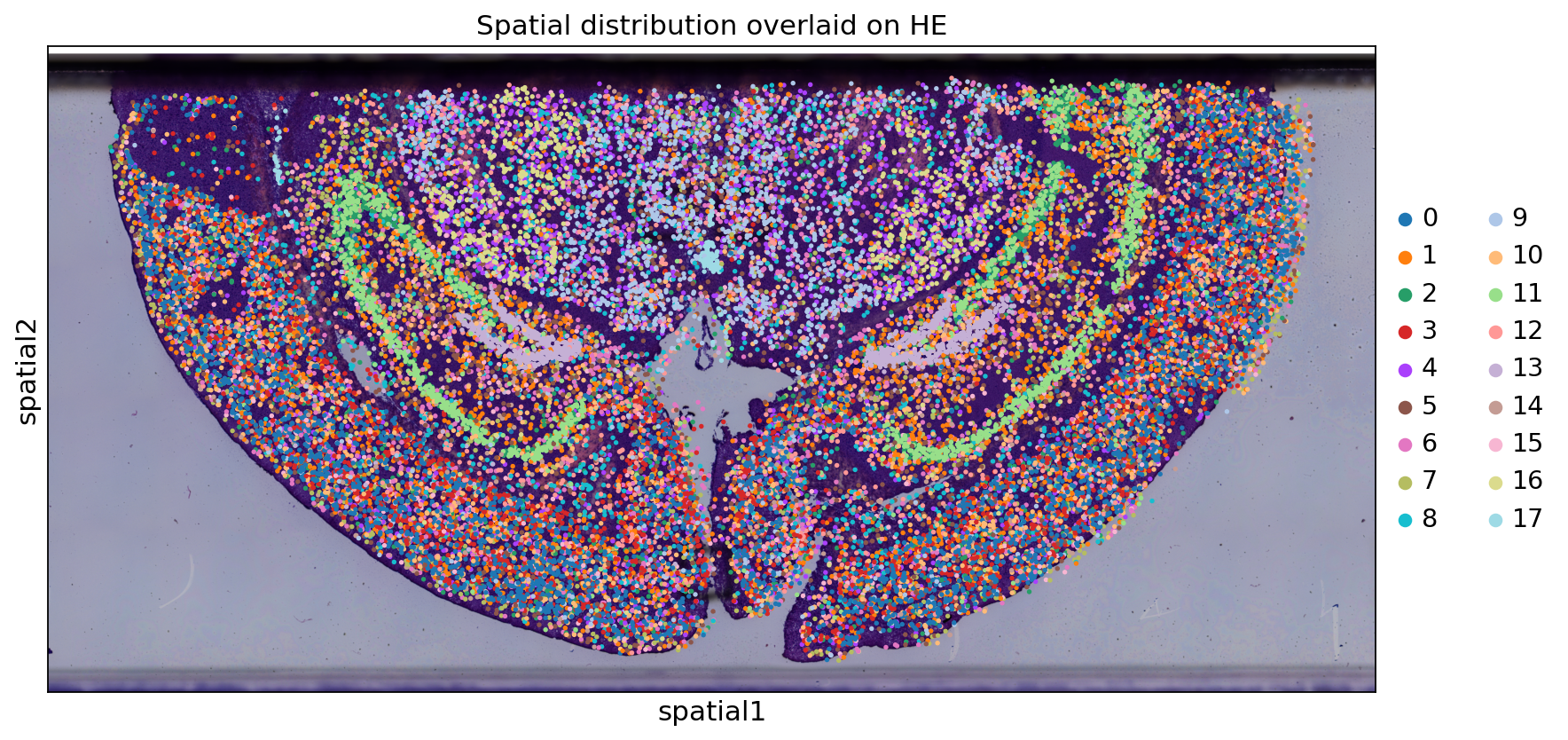
To more intuitively correspond cell populations with real tissue pathological structures, we can directly overlay the spatial scatter plot of cells onto the tissue's fluorescence staining (DAPI) or brightfield staining (HE) images.
The official script has already extracted and saved these background images and precise scaling factors (Scalefactors) for you. You can use the sc.pl.spatial function to draw spatial mapping plots that are both scientifically rigorous and aesthetically pleasing with just one click.
# Get the spatial library name (library_id) of the current data
library_id = list(adata.uns['spatial'].keys())[0]

# Preferentially try to use the DAPI image as background
if 'DAPI' in adata.uns['spatial'][library_id]['images']:
    sc.pl.spatial(adata, color="leiden", library_id=library_id, img_key="DAPI",
                  size=1.5, alpha=1.0, title="Spatial distribution overlaid on DAPI")

# If the sample provides an HE image, you can also use the HE image as background
if 'HE' in adata.uns['spatial'][library_id]['images']:
    sc.pl.spatial(adata, color="leiden", library_id=library_id, img_key="HE",
                  size=1.5, alpha=1.0, title="Spatial distribution overlaid on HE")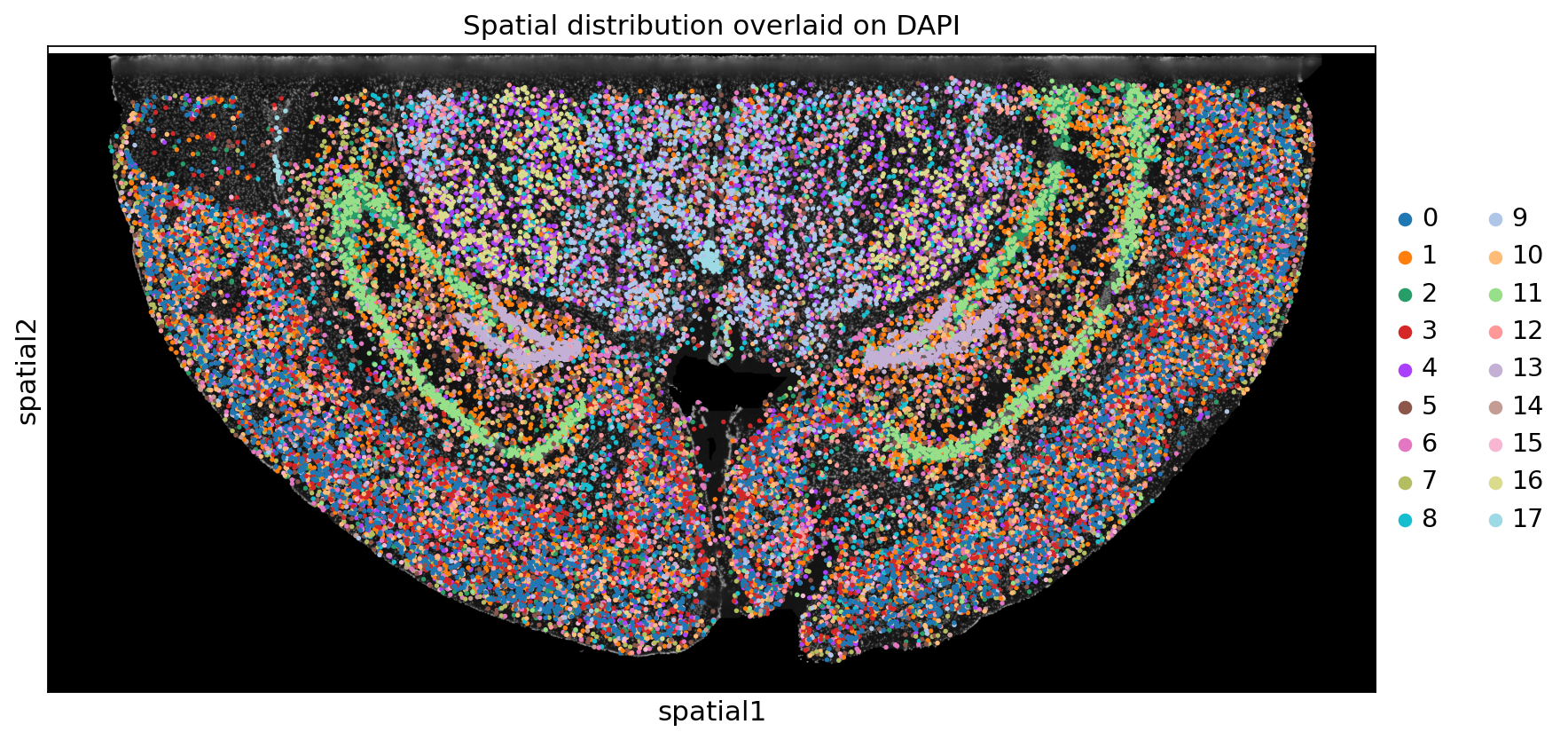
7.1 (Advanced) Highly Customize Spatial Plots using Matplotlib
If you need to deeply personalize image details (such as cell point size, color transparency, legend position, axis limits, etc.) when preparing illustrations for academic papers or presentations, you can refer to the following code template using matplotlib to manually overlay background images and coordinate points:
# Extract tissue image and true size range information
if 'DAPI' in adata.uns['spatial'][library_id]['images']:
    background_image = adata.uns['spatial'][library_id]['images']['DAPI']
elif 'HE' in adata.uns['spatial'][library_id]['images']:
    background_image = adata.uns['spatial'][library_id]['images']['HE']
else:
    background_image = None

size_x = adata.uns['spatial'][library_id]['size_x']
size_y = adata.uns['spatial'][library_id]['size_y']

# Extract spatial coordinates and cell clustering information into a convenient DataFrame
spatial_df = pd.DataFrame(adata.obsm['spatial'], columns=['spatial_1', 'spatial_2'], index=adata.obs.index)
spatial_df['leiden'] = adata.obs['leiden']

# Preset some beautiful color schemes commonly used in scientific plotting with high distinctiveness
MYCOLOR=[
    "#6394ce", "#2a4c87", "#eed500", "#ed5858", "#f6cbc2", "#f5a2a2", "#3ca676", "#6cc9d8",
    "#ef4db0", "#992269", "#bcb34a", "#74acf3", "#3e275b", "#fbec7e", "#ec4d3d", "#ee807e",
    "#f7bdb5", "#dbdde6", "#f591e1", "#51678c", "#2fbcd3", "#80cfc3", "#fbefd1", "#edb8b5",
    "#5678a8", "#2fb290", "#a6b5cd", "#90d1c1", "#a4e0ea", "#837fd3", "#5dce8b", "#c5cdd9",
    "#f9e2d6", "#c64ea4", "#b2dfd6", "#dbdfe7", "#dff2ec", "#cce8f3", "#e74d51", "#f7c9c4"
]
cluster = list(set(adata.obs["leiden"]))
colors = {cluster[i]: MYCOLOR[i % len(MYCOLOR)] for i in range(len(cluster))}

# ---------------- Start Plotting ----------------
fig, ax = plt.subplots(figsize=(12, 8))
if background_image is not None:
    # The extent parameter strictly corresponds to the actual physical/pixel coordinate boundaries of the image in space
    ax.imshow(background_image, extent=[0, size_x, size_y, 0], aspect='auto')

ax.grid(False)

for group, color in colors.items():
    group_data = spatial_df[spatial_df['leiden'] == group]
    # Advanced tip: You can adjust s (point size) and alpha (transparency) to avoid over-occlusion in dense areas
    ax.scatter(group_data['spatial_1'], group_data['spatial_2'], color=color, alpha=0.8, label=group, s=0.5)

# Place the legend outside the right side of the image to avoid covering precious tissue information
ax.legend(loc='upper left', bbox_to_anchor=(1.02, 1), markerscale=15, ncol=2, title="Leiden Clusters")
ax.set_title("Custom Spatial Plot overlaid on Tissue Image")
ax.set_xlabel("Spatial X")
ax.set_ylabel("Spatial Y")
plt.gca().set_aspect('equal', adjustable='box')
plt.tight_layout()
plt.show()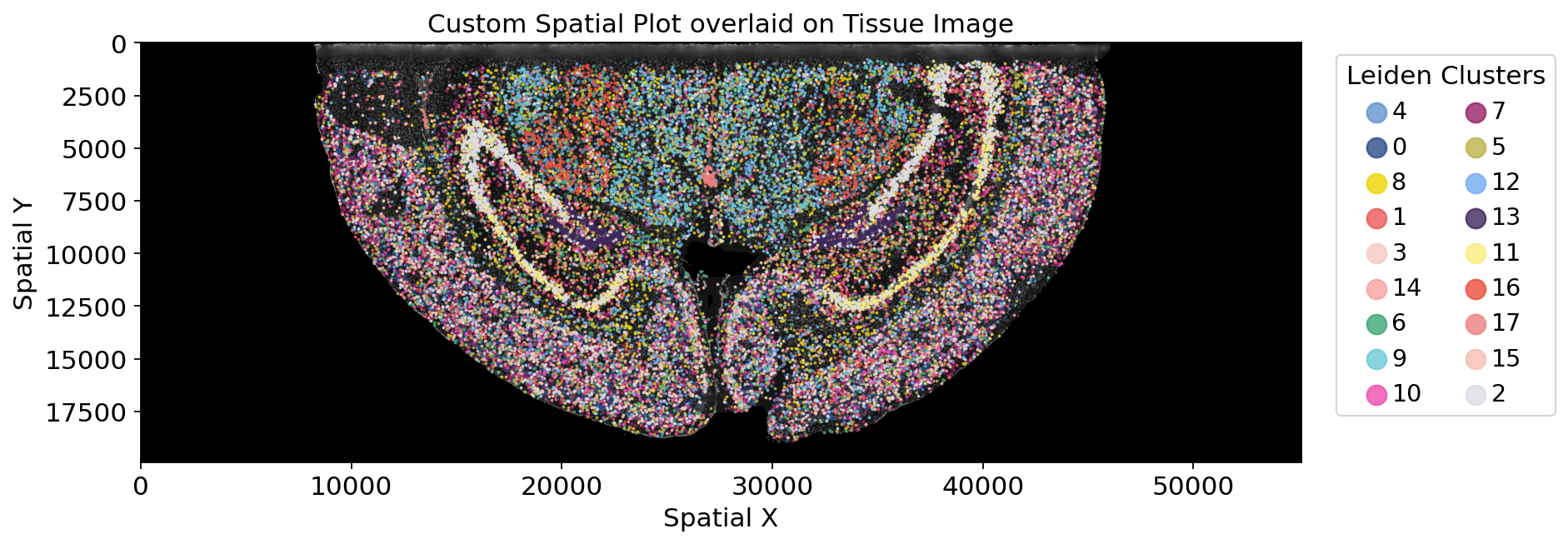
8. Add and Display Biological Cell Type Annotations
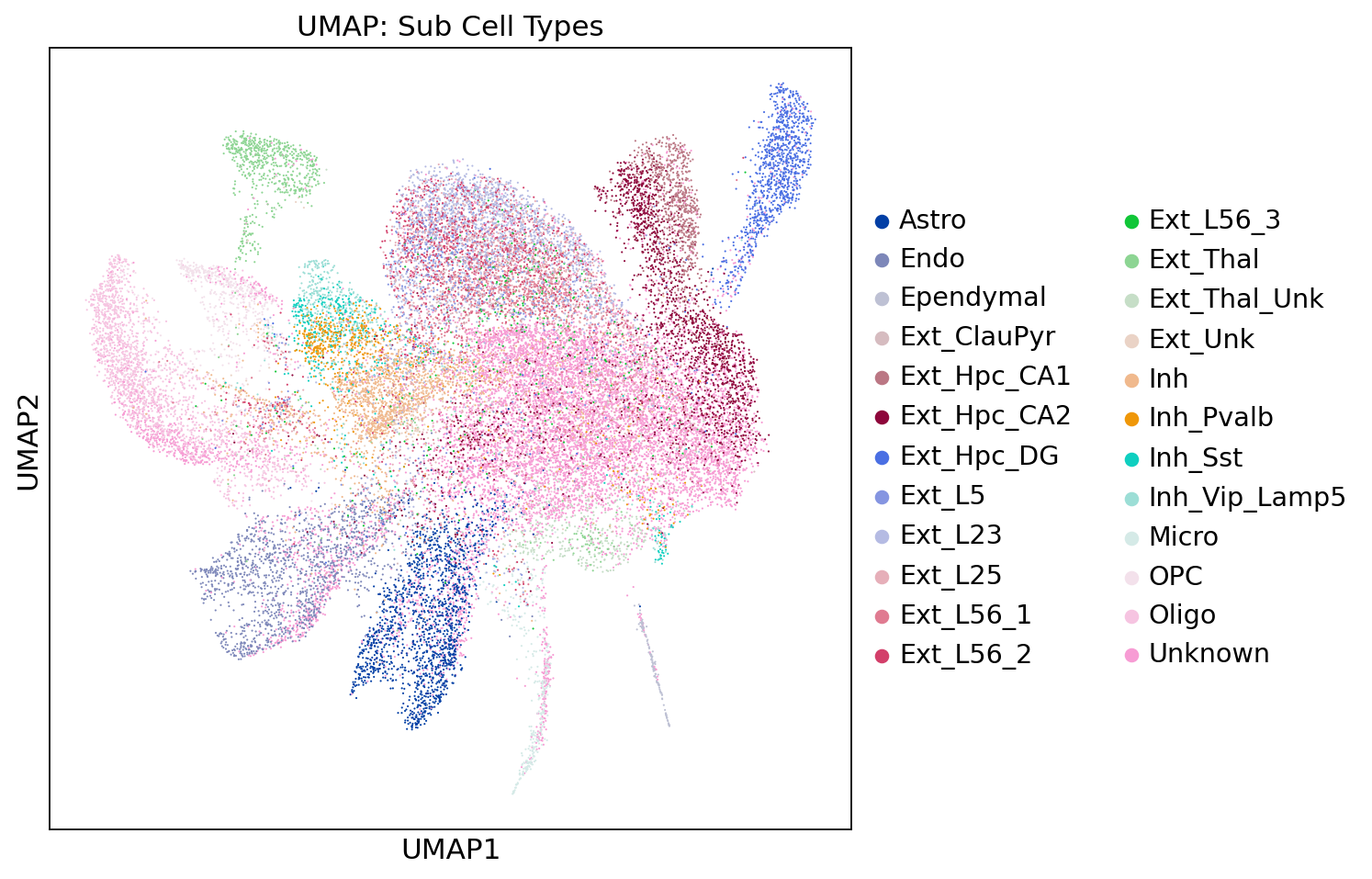
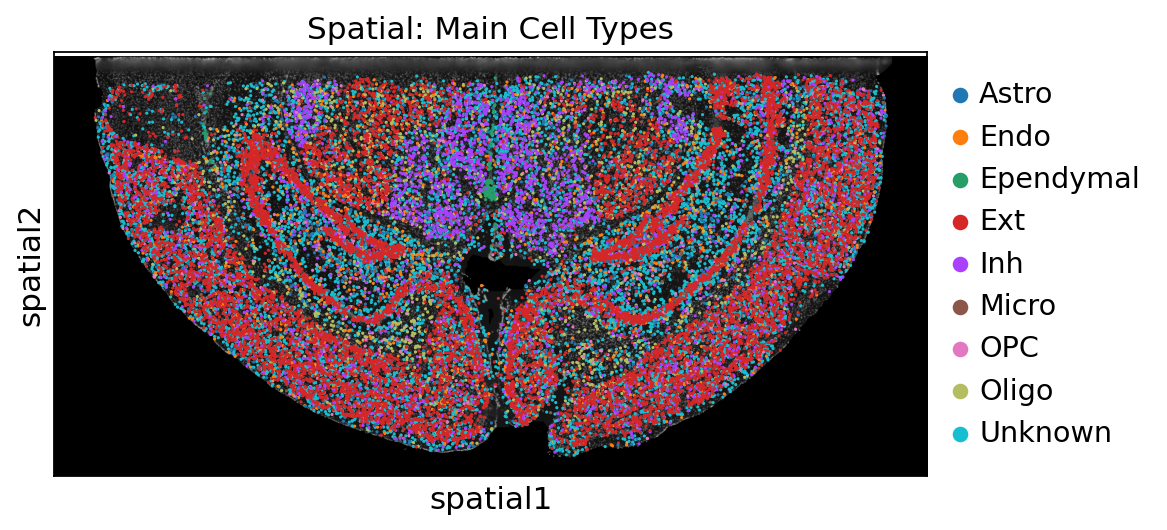
Purely unsupervised digital clustering (Cluster 0, 1, 2...) is not intuitive enough biologically. Usually, we need to combine known Marker gene knowledge to identify the true biological cell types corresponding to these digital clusters (such as T cells, B cells, fibroblasts, tumor cells, etc.).
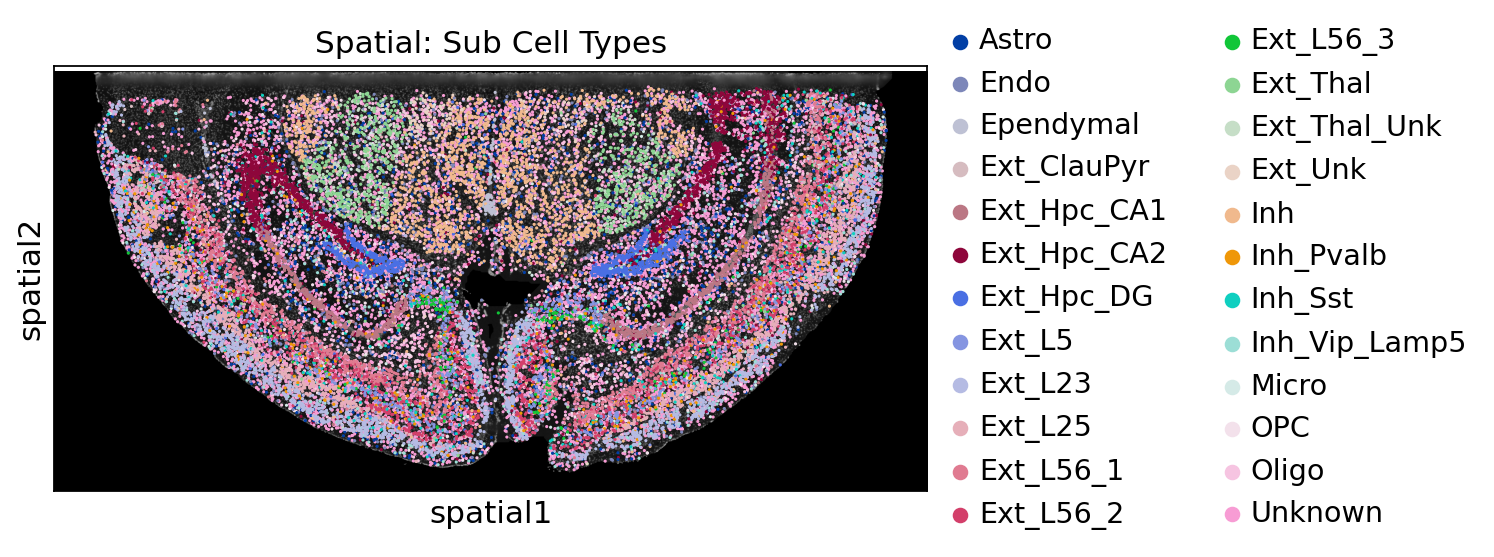
Assuming you have completed cell annotation and saved the results as an independent annotation.csv file (the first column is the cell's Barcode, and it contains an annotation column named Main_CellType or Sub_CellType). We can easily merge this external annotation table back into the data and display your identification results on the UMAP and spatial tissue sections.
import os

anno_file = "./annotation.csv"
if os.path.exists(anno_file):
    # Read external annotation file
    cell_anno = pd.read_csv(anno_file, index_col=0, sep=',')

    # Seamlessly merge annotation information into the metadata (obs) of the core adata object
    cols_to_drop = [col for col in cell_anno.columns if col in adata.obs.columns]
    if cols_to_drop:
        adata.obs.drop(columns=cols_to_drop, inplace=True)

    # Seamlessly merge annotation information into the metadata (obs) of the core adata object
    adata.obs = pd.merge(adata.obs, cell_anno, left_index=True, right_index=True)

    # --- 1. Display major cell types (Main_CellType) on UMAP ---
    sc.settings.set_figure_params(figsize=(7, 7))
    sc.pl.umap(adata, color=["Main_CellType"], title="UMAP: Main Cell Types")
    sc.pl.umap(adata, color=["Sub_CellType"], title="UMAP: Sub Cell Types")

    # --- 2. Display subpopulation cell types (Sub_CellType) in situ in tissue space ---
    sc.pl.spatial(adata, color="Main_CellType", library_id=library_id, img_key="DAPI", size=1.5, alpha=1.0, title="Spatial: Main Cell Types")
    sc.pl.spatial(adata, color="Sub_CellType", library_id=library_id, img_key="DAPI", size=1.5, alpha=1.0, title="Spatial: Sub Cell Types")
else:
    print(f"Annotation file '{anno_file}' not found.\n👉 If you have an annotation result file, please place it in the current directory and name it 'annotation.csv', or change the annotation.csv filename in the cell to your annotation result filename, and rerun this cell to view your annotation charts.")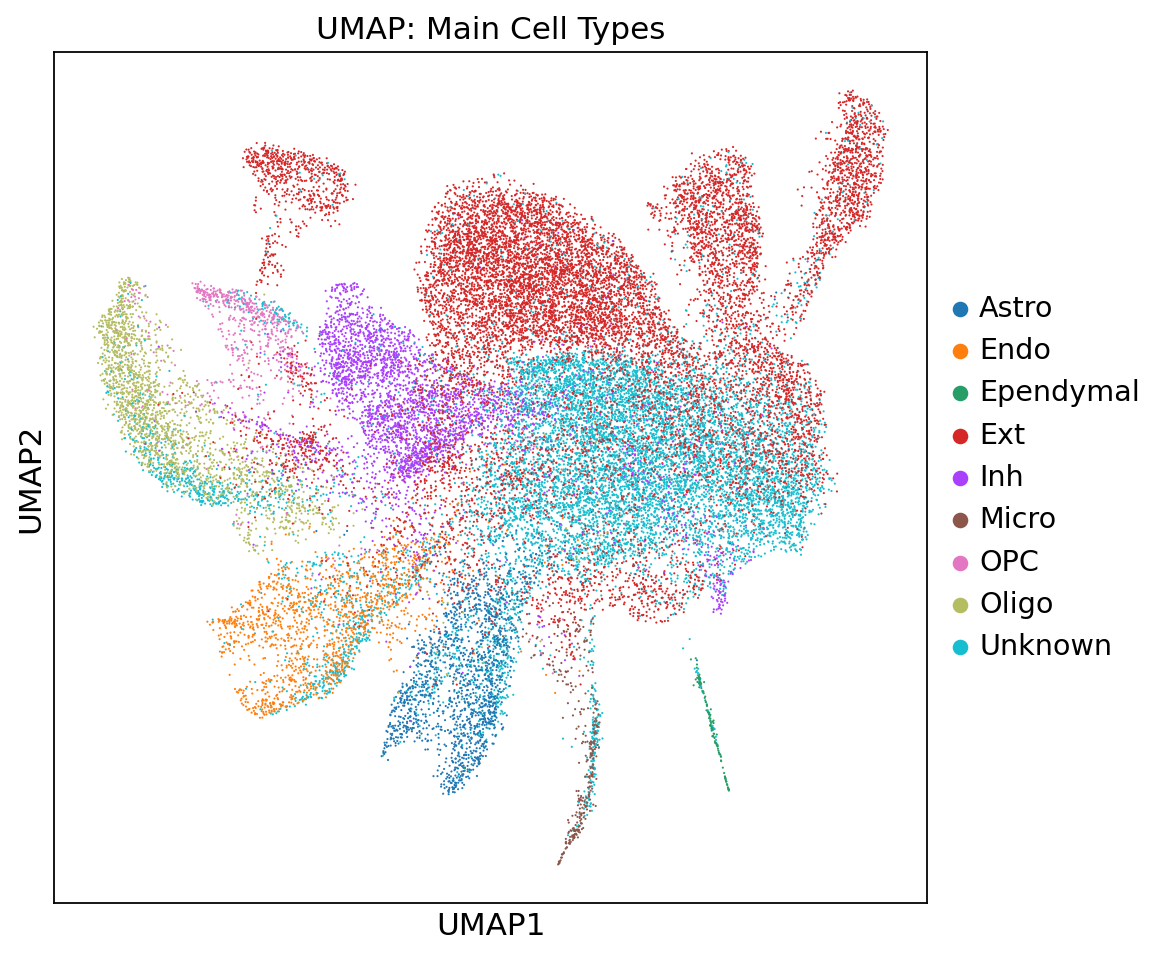
Conclusion
This tutorial only demonstrates the basic data reading and in situ visualization pipeline. Thanks to the standardized AnnData object, you can seamlessly connect to numerous powerful spatial analysis tools in the open-source ecosystem (such as Squidpy, Cell2location, Giotto, etc.) to perform advanced deep analysis such as spatial neighborhood communication, cell interaction network construction, and microenvironment module discovery.